Audio tracks
Add audio and adjust its timing, volume, and fades.
Audio tools ↗Record your screen on Windows, trim the video, and add zooms, backgrounds, and captions in Pro Screen.
Free · Windows 10 / 11 · macOS and Linux coming soonChange wallpaper, gradient, or solid-color presets.
Recorded in the Windows development build.
Capture a display, a window, or a selected area. Set your microphone, camera, and frame rate before starting.
Recording options ↗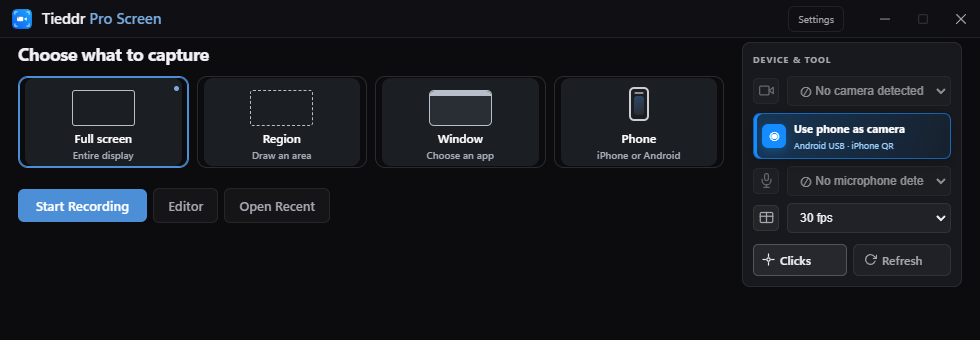
Choose a wallpaper, gradient, or solid color. Adjust padding, rounded corners, and shadows.
Split at the playhead, remove a section, adjust clip speed, or undo an edit.
Change its style, size, and smoothing. Toggle the cursor and add click highlights.
Add text, arrows, boxes, blur, or a spotlight. Each annotation has its own timeline track.
Android supports USB and wireless pairing. iPhone screen mirroring uses AirPlay. Phone camera has a separate setup panel.
Phone requirements ↗Connection setup shown; a live phone is not connected in this preview.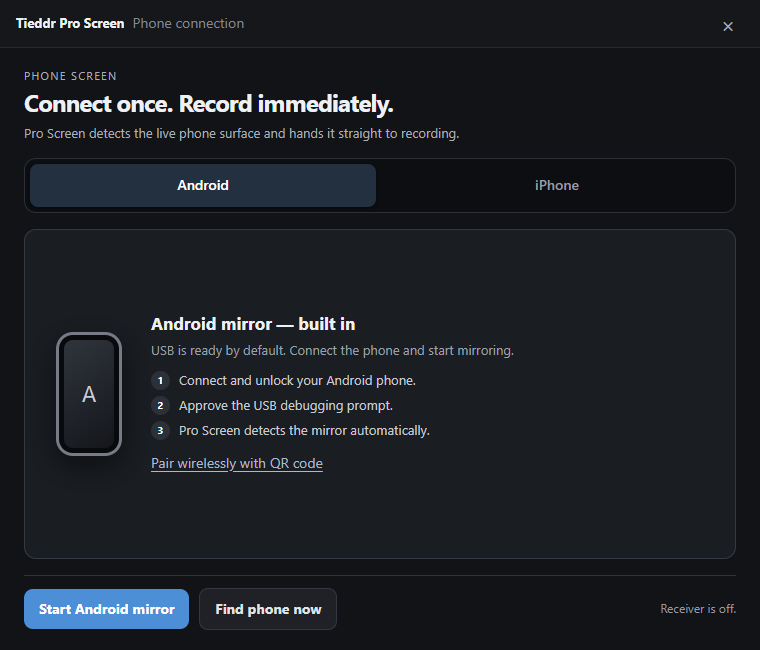
Add audio and adjust its timing, volume, and fades.
Audio tools ↗Open the caption panel to generate, edit, and style subtitles.
Caption tools ↗Choose a format and output resolution before exporting.
Export options ↗The current Windows download is free and does not require an account. Check the download page for the available release and its requirements.
The published download is for 64-bit Windows 10 and 11. macOS and Linux are coming soon; there is no supported installer for them on this site yet.
The showcase videos use a development build. The published installer may not include its latest controls or fixes. Check your version in Settings and compare it with the download notes.
Choose Window to record an application. Choose Phone for Android or iPhone screen mirroring. Phone as camera is a separate option for using the phone’s camera image. Connection requirements vary by device.
No. Zoom enlarges what you captured; it cannot restore missing detail. Record a large, clear source and use moderate zoom. Selecting 4K export does not turn a low-resolution source into a native 4K recording.
The desktop capture, editing, and export paths process media locally. Online music, caption-model downloads, update checks, and phone-camera connection services make network requests. Phone camera media may use a relay if a direct connection is unavailable. See the privacy policy for details.
Local desktop recording, editing, and export do not require a cloud account. Music browsing, model downloads, update checks, and the iPhone browser-camera connection require internet services. Do not assume captions are fully offline until you have tested the required cached files.
Check the individual track’s license and attribution requirements. Being listed in the music catalog is not permission for every commercial or monetized use.
The currently listed installer is unsigned and may receive reputation or unknown-publisher warnings. Use only the release linked from the download page, check its details, and do not disable security protections to install it.
Ctrl + S saves the editable project; Export creates the video you share. For a problem, send your version, reproduction steps, exact error, and a non-sensitive example to support@tieddr.com. The help center includes a checklist.